← All resources

Higgsfield Mixed Media — from a bee’s flight to a film shot

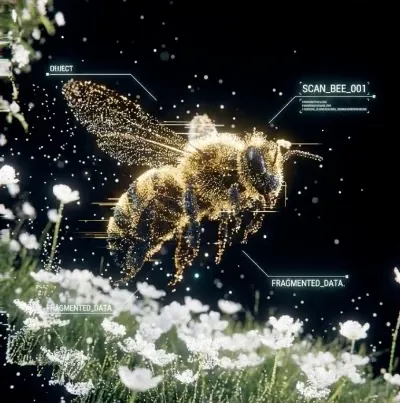
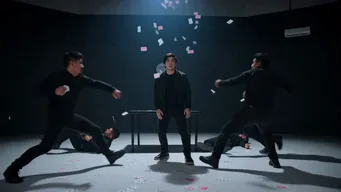
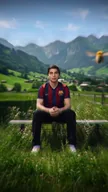
From a bee’s flight to a film shot: a realistic shot and a comic-style effect in one video — made with Nano Banana Pro, Kling 3.0 and Higgsfield Mixed Media. Pictures for every step and the Nano Banana Pro and Kling 3.0 prompts are below.

Want to learn this properly? Mini-course

Resources

Step by step

  1. Step 1 · Nano Banana Pro

    References → generate in Nano Banana

    Pick your reference images and generate them in Nano Banana Pro. To replace an object in the image, use the “Nano Banana Pro prompt” below — fill in your own [OBJECT TO REMOVE] and [NEW OBJECT DESCRIPTION].
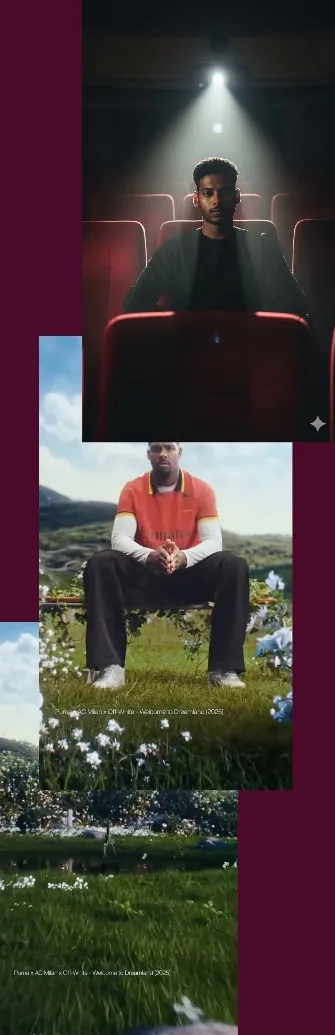
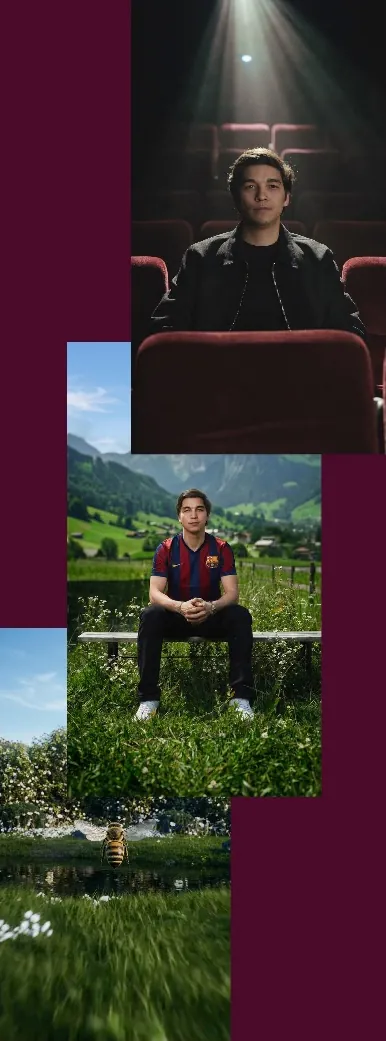
    References → generate in Nano BananaReferences → generate in Nano Banana
  2. Step 2 · Kling 3.0

    Animate the images in Kling 3.0

    Animate your images in Kling 3.0. In Create Video, upload them to Start Frame and End Frame and paste the “Kling 3.0 prompt” below. Settings: 15s, 9:16, 1080p.
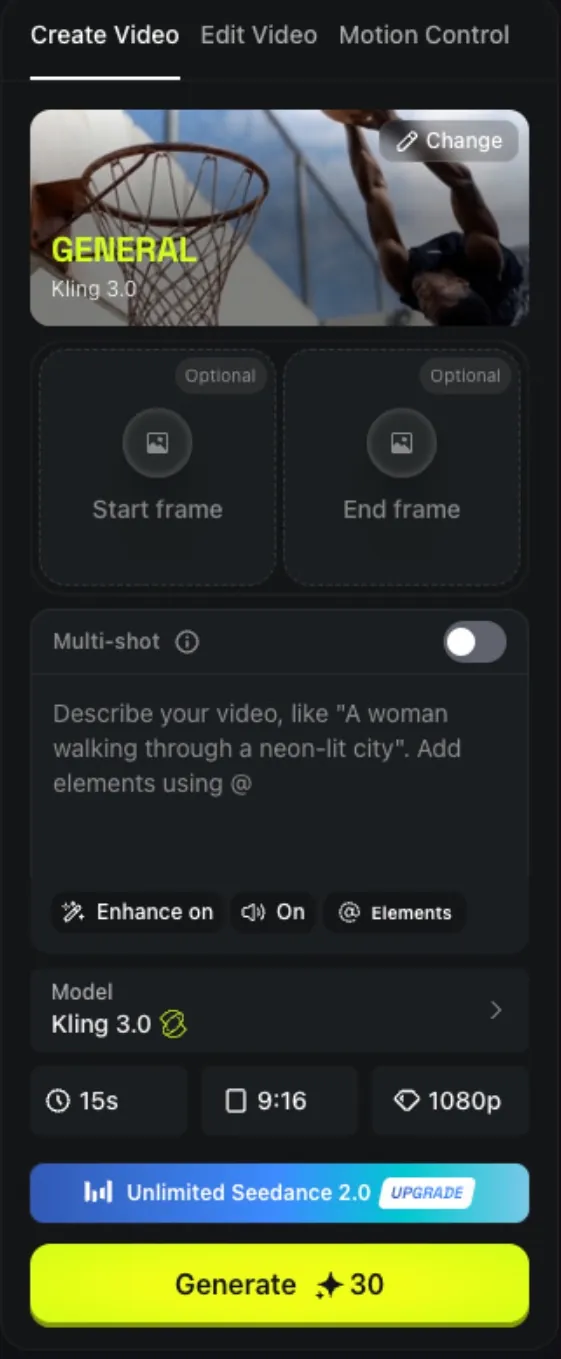
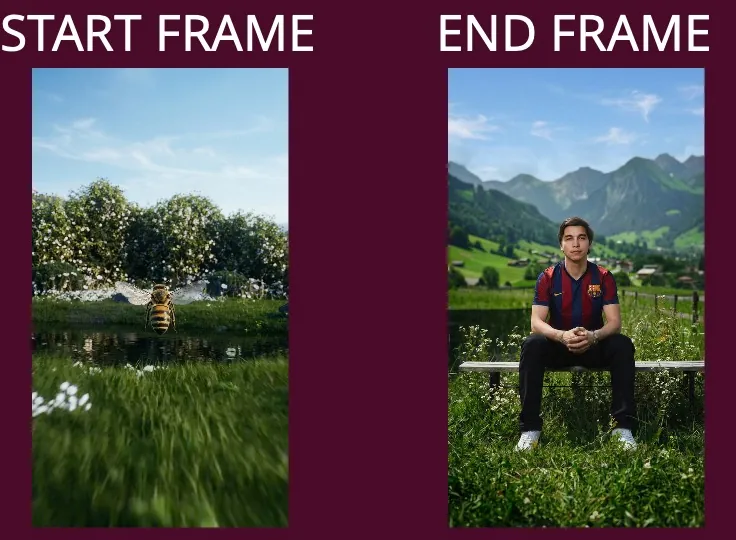
    Animate the images in Kling 3.0Animate the images in Kling 3.0
  3. Step 3 · Higgsfield Mixed Media

    Upload the video and pick an effect

    Open the Mixed Media section in Higgsfield. Upload your video (1–10 seconds), choose the visual effect you like and press “Generate”.
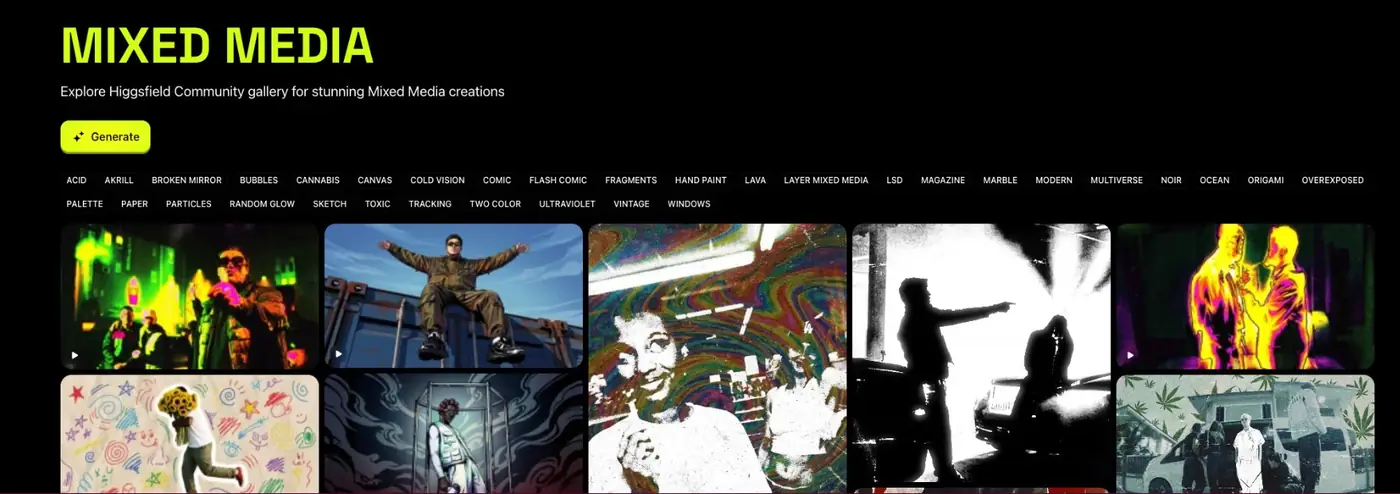
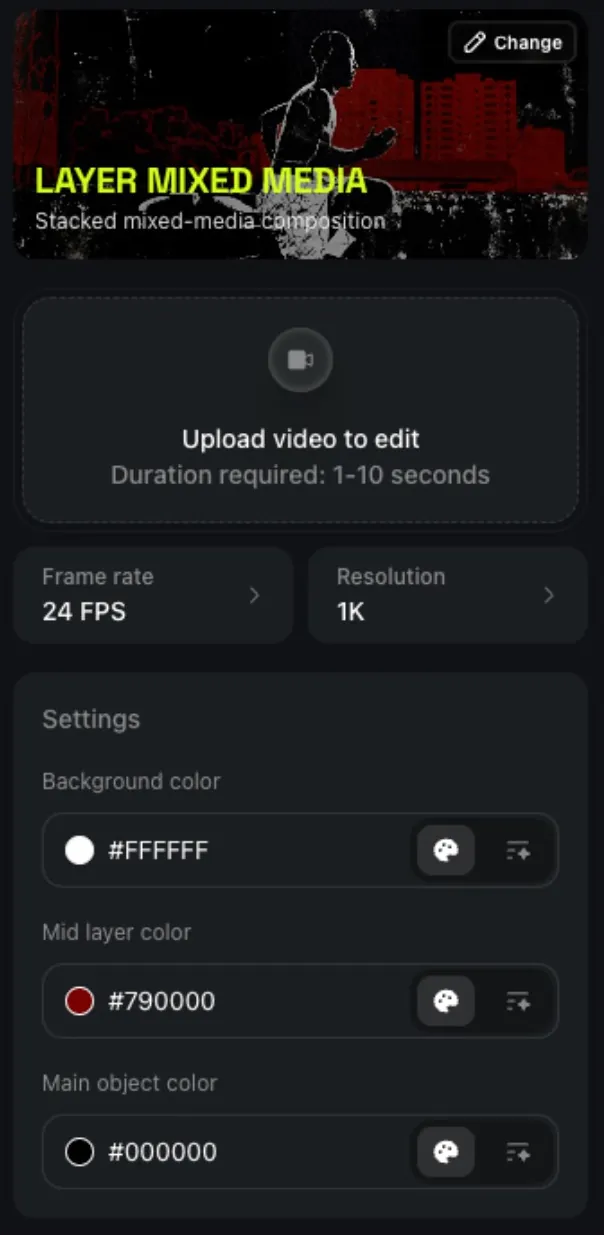
    Upload the video and pick an effectUpload the video and pick an effectUpload the video and pick an effect
  4. Step 4 · Editing

    Edit the videos together

    Once your videos are ready, edit them together.

    Edit the videos together

Result

Full guide (PDF)Open
Nano Banana Pro prompt

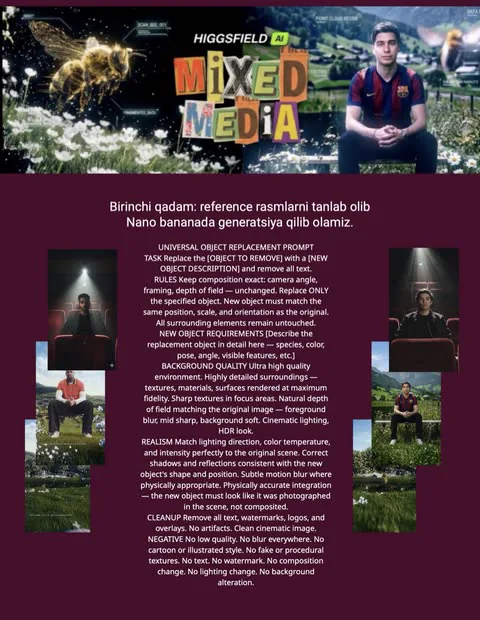
UNIVERSAL OBJECT REPLACEMENT PROMPT TASK Replace the [OBJECT TO REMOVE] with a [NEW OBJECT DESCRIPTION] and remove all text. RULES Keep composition exact: camera angle, framing, depth of field — unchanged. Replace ONLY the specified object. New object must match the same position, scale, and orientation as the original. All surrounding elements remain untouched. NEW OBJECT REQUIREMENTS [Describe the replacement object in detail here — species, color, pose, angle, visible features, etc.] BACKGROUND QUALITY Ultra high quality environment. Highly detailed surroundings — textures, materials, surfaces rendered at maximum fidelity. Sharp textures in focus areas. Natural depth of field matching the original image — foreground blur, mid sharp, background soft. Cinematic lighting, HDR look. REALISM Match lighting direction, color temperature, and intensity perfectly to the original scene. Correct shadows and reflections consistent with the new object's shape and position. Subtle motion blur where physically appropriate. Physically accurate integration — the new object must look like it was photographed in the scene, not composited. CLEANUP Remove all text, watermarks, logos, and overlays. No artifacts. Clean cinematic image. NEGATIVE No low quality. No blur everywhere. No cartoon or illustrated style. No fake or procedural textures. No text. No watermark. No composition change. No lighting change. No background alteration.

Kling 3.0 prompt (Start + End Frame)

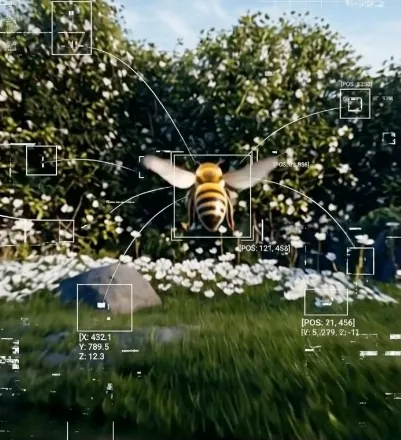
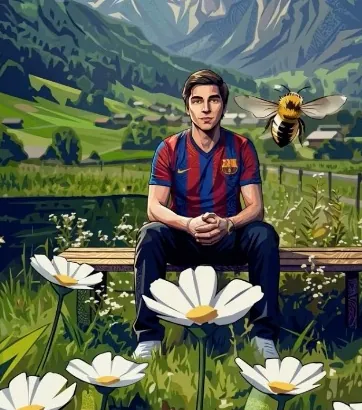
KLING 3.0 START FRAME END FRAME. POV shot. Camera rigidly locked on the seated man, perfectly centered, no camera movement. The man stays 100% sharp when in focus. START A realistic honey bee (back view) is hovering low above the water in front of the scene. Focus is on the bee (sharp), background and man slightly blurred. PRE-FLIGHT Subtle vibration only on the bee. Environment natural and still. Focus remains locked on the bee. TAKEOFF The bee accelerates forward toward the man. Focus continues tracking the bee (bee sharp, environment blurred). FLIGHT The bee flies fast through grass and flowers. When reaching dense bushes, the vegetation DOES NOT open or separate automatically. The bee navigates ONLY through existing natural gaps between leaves and branches. Leaves and flowers react strictly from real physical interaction and airflow only: slight bending on contact soft elastic deformation micro delay (natural inertia) before movement subtle secondary motion after contact gentle return to original position with natural damping no path clearing no automatic opening Add micro physics realism: small leaf lag and follow-through motion tiny vibration after contact subtle variation in movement (not uniform) realistic weight and stiffness differences between leaves Strong foreground–midground–background parallax. Only environment motion blur, the bee stays perfectly sharp. FOCUS SHIFT (IMPORTANT) As the bee exits the bushes and flies to the right side of the frame, focus smoothly transitions from the bee to the man. FINAL The bee continues flying to the right side, becoming slightly out of focus. The man becomes fully sharp and in focus, centered and still. STYLE Ultra-realistic Single continuous shot Natural cinematic focus pull NEGATIVE No camera movement No plant auto-opening No subject blur when in focus No unrealistic focus jump No transformation

Learn to make videos like these step by step — 15 lessons in the mini-course, in Uzbek.

About the mini-course
← All resources

Higgsfield Mixed Media — from a bee’s flight to a film shot

From a bee’s flight to a film shot: a realistic shot and a comic-style effect in one video — made with Nano Banana Pro, Kling 3.0 and Higgsfield Mixed Media. Pictures for every step and the Nano Banana Pro and Kling 3.0 prompts are below.

Want to learn this properly? Mini-course

Resources

Step by step

  1. Step 1 · Nano Banana Pro

    References → generate in Nano Banana

    Pick your reference images and generate them in Nano Banana Pro. To replace an object in the image, use the “Nano Banana Pro prompt” below — fill in your own [OBJECT TO REMOVE] and [NEW OBJECT DESCRIPTION].

    References → generate in Nano BananaReferences → generate in Nano Banana
  2. Step 2 · Kling 3.0

    Animate the images in Kling 3.0

    Animate your images in Kling 3.0. In Create Video, upload them to Start Frame and End Frame and paste the “Kling 3.0 prompt” below. Settings: 15s, 9:16, 1080p.

    Animate the images in Kling 3.0Animate the images in Kling 3.0
  3. Step 3 · Higgsfield Mixed Media

    Upload the video and pick an effect

    Open the Mixed Media section in Higgsfield. Upload your video (1–10 seconds), choose the visual effect you like and press “Generate”.
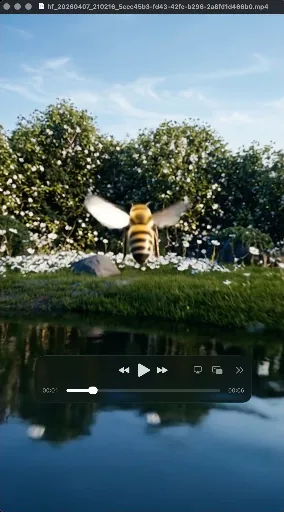
    Upload the video and pick an effectUpload the video and pick an effectUpload the video and pick an effect
  4. Step 4 · Editing

    Edit the videos together

    Once your videos are ready, edit them together.
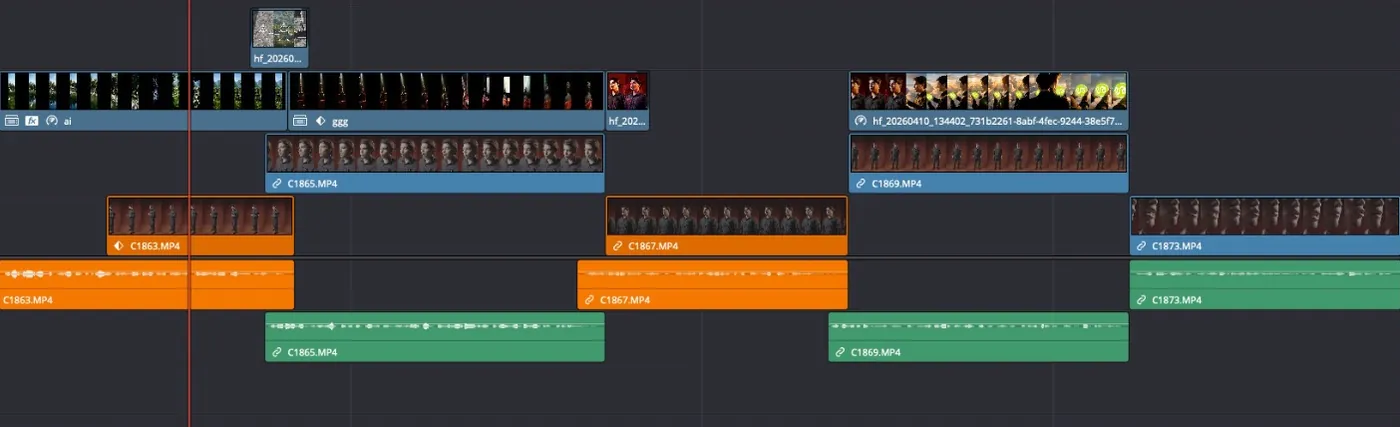
    Edit the videos together

Result

Full guide (PDF)Open
Nano Banana Pro prompt

UNIVERSAL OBJECT REPLACEMENT PROMPT TASK Replace the [OBJECT TO REMOVE] with a [NEW OBJECT DESCRIPTION] and remove all text. RULES Keep composition exact: camera angle, framing, depth of field — unchanged. Replace ONLY the specified object. New object must match the same position, scale, and orientation as the original. All surrounding elements remain untouched. NEW OBJECT REQUIREMENTS [Describe the replacement object in detail here — species, color, pose, angle, visible features, etc.] BACKGROUND QUALITY Ultra high quality environment. Highly detailed surroundings — textures, materials, surfaces rendered at maximum fidelity. Sharp textures in focus areas. Natural depth of field matching the original image — foreground blur, mid sharp, background soft. Cinematic lighting, HDR look. REALISM Match lighting direction, color temperature, and intensity perfectly to the original scene. Correct shadows and reflections consistent with the new object's shape and position. Subtle motion blur where physically appropriate. Physically accurate integration — the new object must look like it was photographed in the scene, not composited. CLEANUP Remove all text, watermarks, logos, and overlays. No artifacts. Clean cinematic image. NEGATIVE No low quality. No blur everywhere. No cartoon or illustrated style. No fake or procedural textures. No text. No watermark. No composition change. No lighting change. No background alteration.

Kling 3.0 prompt (Start + End Frame)

KLING 3.0 START FRAME END FRAME. POV shot. Camera rigidly locked on the seated man, perfectly centered, no camera movement. The man stays 100% sharp when in focus. START A realistic honey bee (back view) is hovering low above the water in front of the scene. Focus is on the bee (sharp), background and man slightly blurred. PRE-FLIGHT Subtle vibration only on the bee. Environment natural and still. Focus remains locked on the bee. TAKEOFF The bee accelerates forward toward the man. Focus continues tracking the bee (bee sharp, environment blurred). FLIGHT The bee flies fast through grass and flowers. When reaching dense bushes, the vegetation DOES NOT open or separate automatically. The bee navigates ONLY through existing natural gaps between leaves and branches. Leaves and flowers react strictly from real physical interaction and airflow only: slight bending on contact soft elastic deformation micro delay (natural inertia) before movement subtle secondary motion after contact gentle return to original position with natural damping no path clearing no automatic opening Add micro physics realism: small leaf lag and follow-through motion tiny vibration after contact subtle variation in movement (not uniform) realistic weight and stiffness differences between leaves Strong foreground–midground–background parallax. Only environment motion blur, the bee stays perfectly sharp. FOCUS SHIFT (IMPORTANT) As the bee exits the bushes and flies to the right side of the frame, focus smoothly transitions from the bee to the man. FINAL The bee continues flying to the right side, becoming slightly out of focus. The man becomes fully sharp and in focus, centered and still. STYLE Ultra-realistic Single continuous shot Natural cinematic focus pull NEGATIVE No camera movement No plant auto-opening No subject blur when in focus No unrealistic focus jump No transformation

Learn to make videos like these step by step — 15 lessons in the mini-course, in Uzbek.

About the mini-course